 PatternFly Elements
Write your tests
Let's write a test for the pfe-cool-element.
We rely on a few tools to ensure our element is reliable in production:
- Web Component Tester, built and maintained by the Polymer team, makes testing easy. All we have to do is add the element's HTML to a file and set up our suite of tests.
- We'll use the Chai Assertion Library to make sure our tests pass since Mocha and Chai are both included in Web Component Tester.
Web Component Tester
If you followed the Prerequisites in Setup, your setup should already be done.
Test Setup
In the root of the element, there's a /test directory with an index.html, HTML files that will test against Vue, React, and vanilla JavaScript, and a JavaScript file. The index.html file tells Web Component Tester which files to test. To start, we'll comment out the Vue and React tests and we'll add them back in once we get our tests passing.
<!doctype html>
<html>
<head>
  <meta charset="utf-8">
  <meta name="viewport" content="width=device-width, minimum-scale=1.0, initial-scale=1.0, user-scalable=yes">
  <script src="/components/web-component-tester/browser.js"></script>
</head>
<body>
  <script>
    // Load and run all tests (.html, .js):
    WCT.loadSuites([
      'pfe-cool-element_test.html',
      // 'pfe-cool-element_react_test.html',
      // 'pfe-cool-element_vue_test.html'
    ]);

  </script>
</body>
</html>
We've included the web component polyfill and wct-browser-legacy/browser.js in the /test/index.html file. We need wct-browser-legacy/browser.js because Web Component Tester looks for web components loaded from a bower_components directory. However, our web components are installed via npm and served from a node_modules directory, meaning that we're required to use wct-browser-legacy (Reference to the Node support section of the Web Component Tester README).
The setup for /test/pfe-cool-element_test.html is pretty simple.
<!DOCTYPE html>
<html>
<head>
  <meta charset="utf-8">
  <meta name="viewport" content="width=device-width, minimum-scale=1.0, initial-scale=1.0, user-scalable=yes">
  <script src="/components/@webcomponents/webcomponentsjs/webcomponents-bundle.js"></script>
  <script src="/components/web-component-tester/browser.js"></script>
  <script type="module" src="../dist/pfe-cool-element.js"></script>
</head>
<body>
  <pfe-cool-element photo-url="https://avatars2.githubusercontent.com/u/330256?s=400&u=de56919e816dc9f821469c2f86174f29141a896e&v=4">
    Kyle Buchanan
  </pfe-cool-element>
  <script src="pfe-cool-element_test.js"></script>
</body>
</html>
Now that we have our markup, we'll add four stubs for the functionality we need to test in our pfe-cool-element_test.js file:
suite('<pfe-cool-element>', () => {
  test("it should upgrade", () => {
    assert.instanceOf(
      document.querySelector("pfe-cool-element"),
      customElements.get("pfe-cool-element"),
      "pfe-cool-element should be an instance of pfeCoolElement"
    );
  });

  test('it should set a username from the light DOM', () => {

  });

  test('it should allow a user to follow a profile', () => {

  });

  test('it should set the state to follow if the following attribute is present', () => {

  });

  test('it should set a profile pic from the photo-url attribute', () => {

  });
});
Note that we using <script type="module"... to load our element definition to make sure we're testing the true source of our element instead of the transpiled version. You'll also notice the HTML included to set up our tests. This is the same HTML from our /demo/index.html file.
Now that our setup is complete, we can start building our tests.
Test Cases
Let's build out the 'pfe-cool-element' test suites. We'll use document.querySelector to grab our element and include DOM API methods to interact with what we're testing.
Here is the JavaScript code:
suite("<pfe-cool-element>", () => {
  test("it should upgrade", () => {
    assert.instanceOf(
      document.querySelector("pfe-cool-element"),
      customElements.get("pfe-cool-element"),
      "pfe-cool-element should be an instance of pfeCoolElement"
    );
  });

  test('it should set a username from the light DOM', () => {
    const element = document.querySelector('pfe-cool-element');
    const elementLightDOMContent = element.textContent.trim();
    const shadowRoot = element.shadowRoot;
    const slotContent = shadowRoot.querySelector('slot').assignedNodes()[0].textContent.trim();

    assert.equal(slotContent, elementLightDOMContent);
  });

  test('it should allow a user to follow a profile', () => {
    const element = document.querySelector('pfe-cool-element');
    element.button.click();

    assert.isTrue(element.hasAttribute('follow'));
    assert.equal(element.button.textContent, 'Unfollow');

    element.button.click();

    assert.isNotTrue(element.hasAttribute('follow'));
    assert.equal(element.button.textContent, 'Follow');
  });

  test('it should set the state to follow if the following attribute is present', () => {
    const element = document.querySelector('pfe-cool-element');
    element.setAttribute('follow', '');

    assert.isTrue(element.hasAttribute('follow'));
    assert.equal(element.button.textContent, 'Unfollow');

    element.removeAttribute('follow');

    assert.isNotTrue(element.hasAttribute('follow'));
    assert.equal(element.button.textContent, 'Follow');
  });

  test('it should set a profile pic from the photo-url attribute', () => {
    const element = document.querySelector('pfe-cool-element');
    const photoUrlAttribute = element.getAttribute('photo-url');
    const shadowRoot = element.shadowRoot;
    const profilePicContainer = shadowRoot.querySelector('#profile-pic');
    const backgroundImage = profilePicContainer.style.backgroundImage.slice(5, -2);

    assert.equal(photoUrlAttribute, backgroundImage);
  });
});
You may notice we're accessing the shadowRoot here, available to our element by extending PFElement in the definition of our element. You can also access content in the <slot></slot> of your element by using the assignedNodes() method.
We use a slot for the username in pfe-cool-element, making it available to us in the array returned by assignedNodes().
shadowRoot.querySelector('slot').assignedNodes()[0].textContent.trim();
Run the Test
Lastly, we can run the test command below to see how we did. I've added the -p flag so our testing instance is persistent and we can open a browser tab to see the results of the tests.
npm test pfe-cool-element -- -p
This command performs a build, starts up web component tester, and provides us a URL that we can copy and paste into the browser. The command line will give you a URL like this:
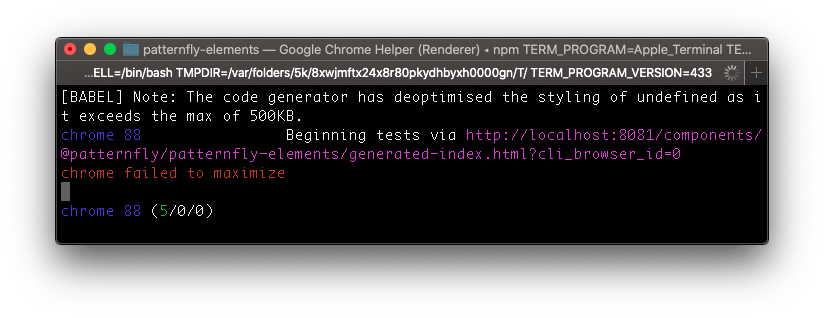
If everything went according to plan, we should see a result like this in the browser.
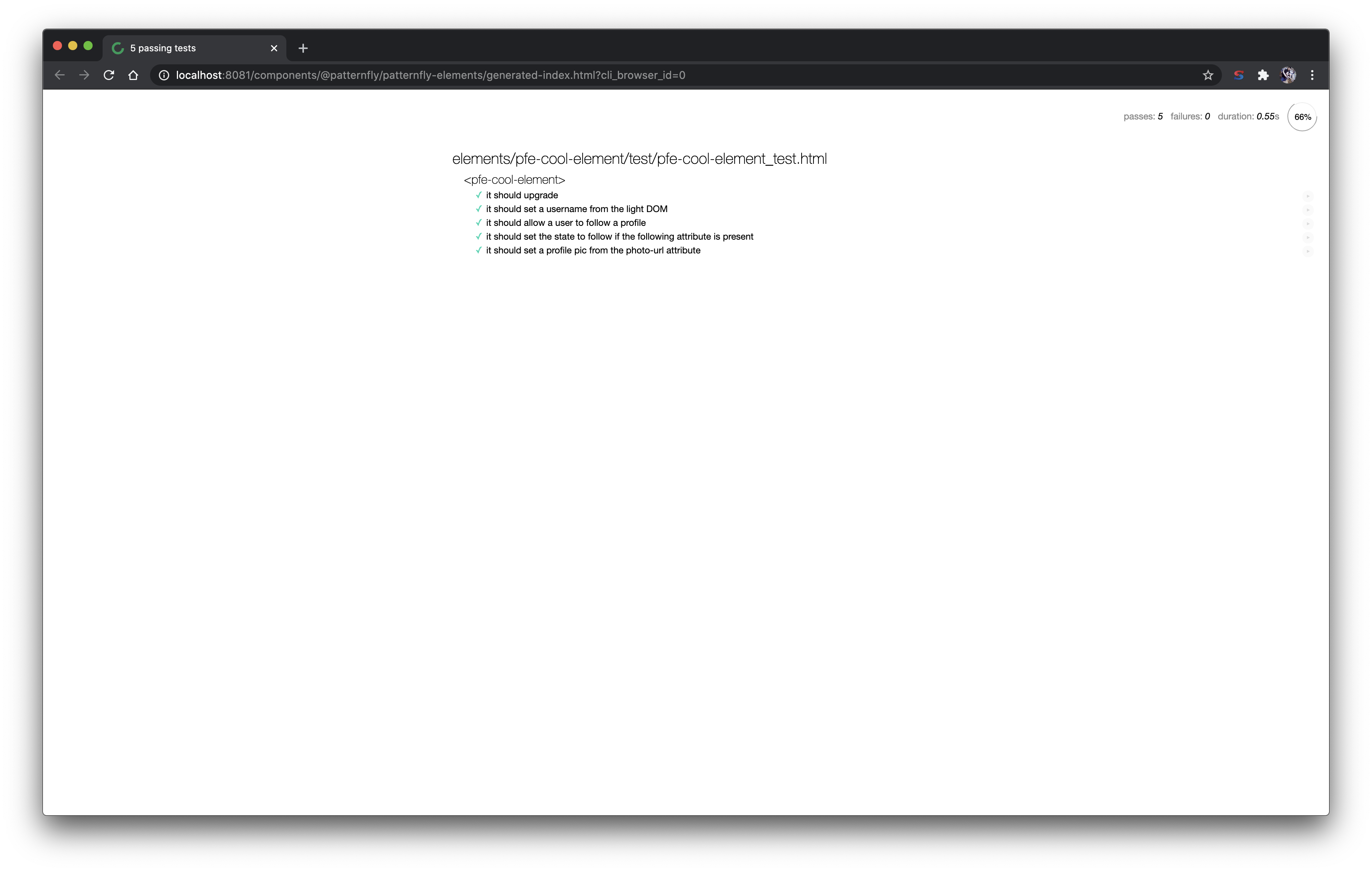
Testing against Vue and React
Now that our vanilla JavaScript tests are passing, let's update our Vue and React HTML files to run the same tests.
Here is pfe-cool-element_vue_test.html.
<!DOCTYPE html>
<html>
<head>
  <meta charset="utf-8">
  <meta name="viewport" content="width=device-width, minimum-scale=1.0, initial-scale=1.0, user-scalable=yes">
  <script src="/components/@webcomponents/webcomponentsjs/webcomponents-bundle.js"></script>
  <script src="/components/web-component-tester/browser.js"></script>
  <script src="/components/vue/dist/vue.min.js"></script>
  <script type="module" src="../dist/pfe-cool-element.js"></script>
</head>

<body>
  <div id="root"></div>
  <script>
    const app = new Vue({
      el: "#root",
      template: `
        <pfe-cool-element photo-url="https://avatars2.githubusercontent.com/u/330256?s=400&u=de56919e816dc9f821469c2f86174f29141a896e&v=4">
          Kyle Buchanan
        </pfe-cool-element>
      `
    });
  </script>
  <script src="pfe-cool-element_test.js"></script>
</body>
</html>
And pfe-cool-element_react_test.html.
<!DOCTYPE html>
<html>
<head>
  <meta charset="utf-8">
  <meta name="viewport" content="width=device-width, minimum-scale=1.0, initial-scale=1.0, user-scalable=yes">
  <script src="/components/@webcomponents/webcomponentsjs/webcomponents-bundle.js"></script>
  <script src="/components/web-component-tester/browser.js"></script>
  <script src="/components/react/umd/react.production.min.js"></script>
  <script src="/components/react-dom/umd/react-dom.production.min.js"></script>
  <script src="/components/babel-standalone/babel.min.js"></script>
  <script type="module" src="../dist/pfe-cool-element.js"></script>
  <script type="text/babel">
    function TestSuite() {
        return (
          <pfe-cool-element photo-url="https://avatars2.githubusercontent.com/u/330256?s=400&u=de56919e816dc9f821469c2f86174f29141a896e&v=4">
            Kyle Buchanan
          </pfe-cool-element>
        );
      }

      ReactDOM.render(TestSuite(), document.querySelector("#root"));
    </script>
</head>
<body>
  <div id="root"></div>
  <script src="pfe-cool-element_test.js"></script>
</body>
</html>
Now that we have those two files updated, we'll add the tests back in our index.html file.
<!doctype html>
<html>
<head>
  <meta charset="utf-8">
  <meta name="viewport" content="width=device-width, minimum-scale=1.0, initial-scale=1.0, user-scalable=yes">
  <script src="/components/web-component-tester/browser.js"></script>
</head>
<body>
  <script>
    // Load and run all tests (.html, .js):
    WCT.loadSuites([
      'pfe-cool-element_test.html',
      'pfe-cool-element_react_test.html',
      'pfe-cool-element_vue_test.html'
    ]);

  </script>
</body>
</html>
Since we started our testing with the persistent flag, we should just be able refresh our browser to see the additional tests. You should see something like this.
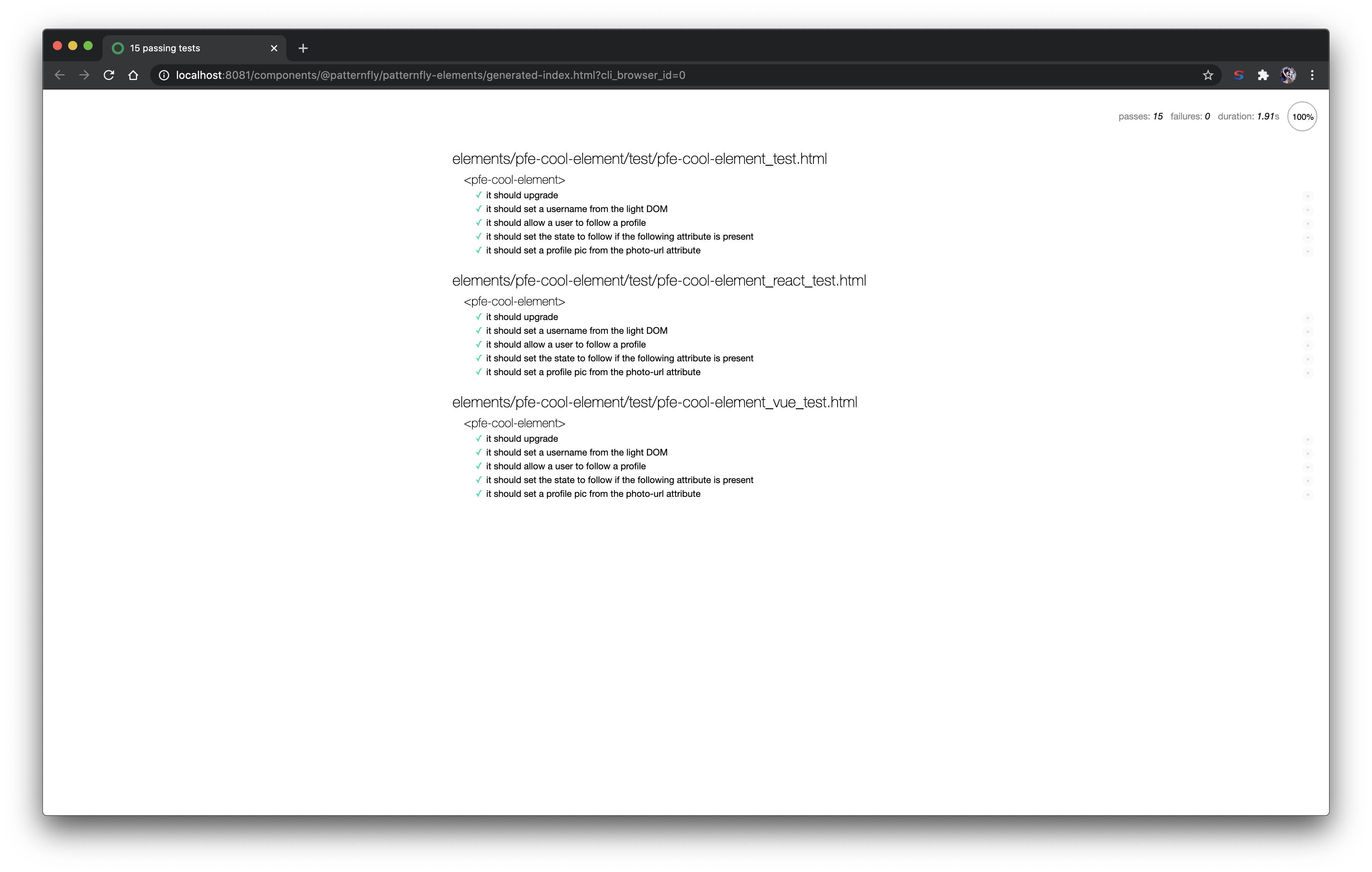
Nice! All four tests are working in Chrome.
A quick note about the framework testing—the Vue and React tests are meant to be an initial first pass in those frameworks just to make sure that the functionality is working and that the component renders properly.
That's it for testing! Now that we've created our pfe-cool-element and all of our code passes, the final step is to submit a pull request to get this merged.